← All Apps

Clipchamp (Stream)
Record, edit and share professional video content from within M365 — no specialist software or skills required.
Book This Session →
Record, edit and share professional video content from within M365 — no specialist software or skills required.
Book This Session →Clipchamp is Microsoft 365's built-in video editor — a browser-based tool for recording, editing and sharing professional video content without specialist software or a steep learning curve. It replaces the older Stream Classic experience and sits alongside OneDrive and SharePoint, so exports stay within your secure M365 environment.
It's ideal for internal communications, training videos, leadership updates, customer-facing demos and polished highlight clips from Teams meeting recordings. Teams most likely to benefit: internal comms, L&D, marketing, sales enablement and team leads who record their own screen captures. It solves the common problem of messy, inconsistent video output produced with whatever tool people can find — replacing it with a single, governed, on-brand way to create video that anyone can pick up in minutes.
A focused session designed to build real-world skills fast.
What Clipchamp is and how it fits into Microsoft 365, from accessing the app and navigating the homepage to understanding how projects and exports are stored in OneDrive. We finish the groundwork by importing media — video, images and audio — from your device or OneDrive.
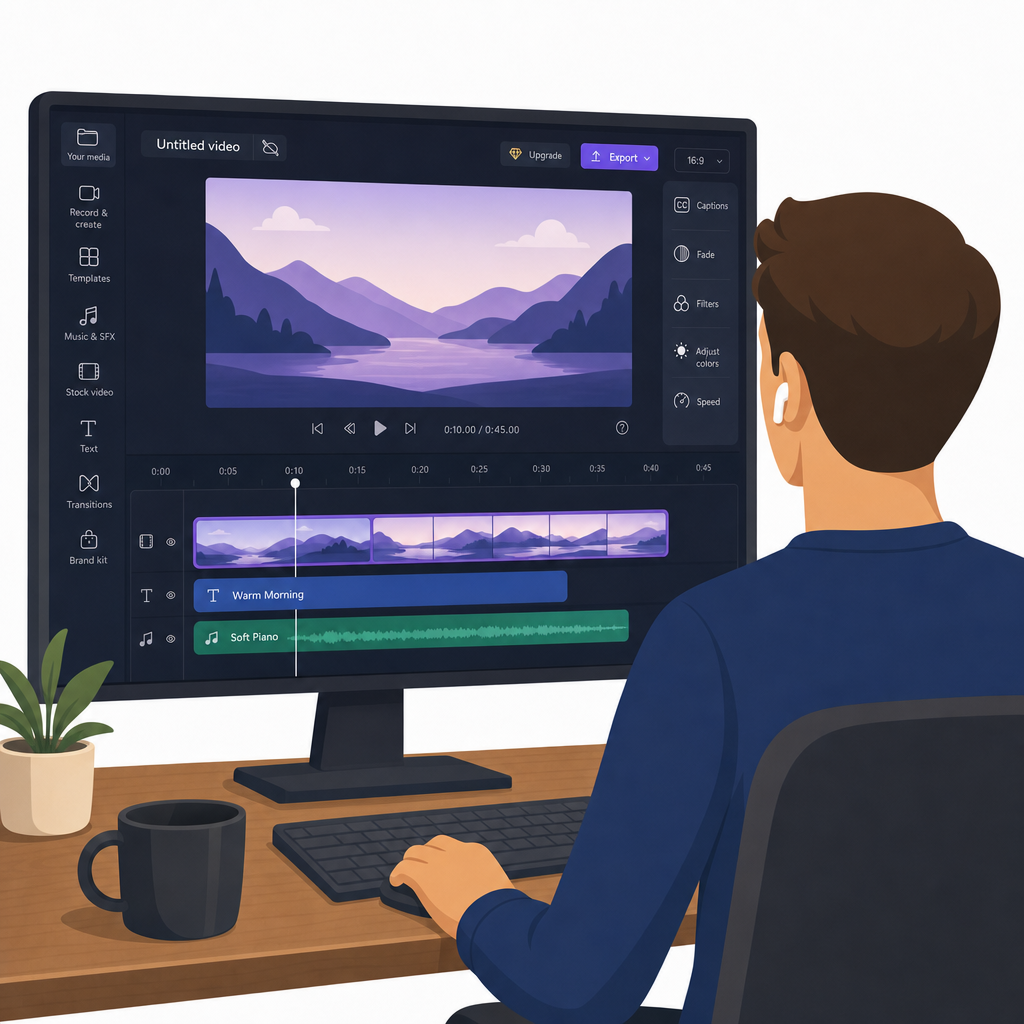
A tour of the editor — timeline, preview window, toolbar and property panel — before getting hands-on with the core skills. We add clips to the timeline and rearrange them, trim and split footage, and place transitions between clips for a polished flow.
Adding text and titles for intros, outros, lower thirds and callouts, then shaping the soundtrack — adjusting volume, fading in and out and working across multiple audio tracks, with background music and sound effects from the stock library. We also record screen, webcam or both together, plus a voiceover directly in the editor.
The features that lift a video from functional to professional: AI voiceover that generates narration from a script in your choice of voice and language, and auto captions you can generate and edit for accessibility. We draw on stock videos, images and backgrounds, customise templates by replacing placeholder content, and apply filters, colour, speed and clip effects.
Exporting your finished video at the right resolution and saving it to OneDrive, then sharing it through links, SharePoint embeds and Teams integration. We close with a practical favourite — editing a Teams meeting recording into a polished highlight clip.